Roundup
The Best Multicolor 3D Printers for Beginners
Multicolor is the feature that makes people want a printer and the one we most often tell them to buy second. Here is what it actually costs in time and filament, and which machines do it well.
By Scooter M. · Published · Last reviewed
How this page is funded: the buy links below are affiliate links. If you buy through one we earn a commission, at no extra cost to you. It does not change the order of the picks or a word of what we say about them. Full disclosure.
Printers we claim to have tested: 0. Everyone in this category says they tested twenty machines. We have not tested any, and we would rather say so. What we did instead is on this page: the manufacturer’s own published specification for every pick, cited and dated; the arithmetic on what it costs to run, with the inputs shown; a live price rather than a remembered one; and a plain answer on who should skip each machine.
The short answer
Buy a single-color printer first and add color later. On most machines the multi-spool unit is a separate purchase you can make any time, and adding it in month three rather than week one means you are solving one problem at a time. If you are certain multi-color is the point, the Anycubic Kobra 3 Combo includes the four-spool unit in the box.
How multicolor actually works, and why that matters
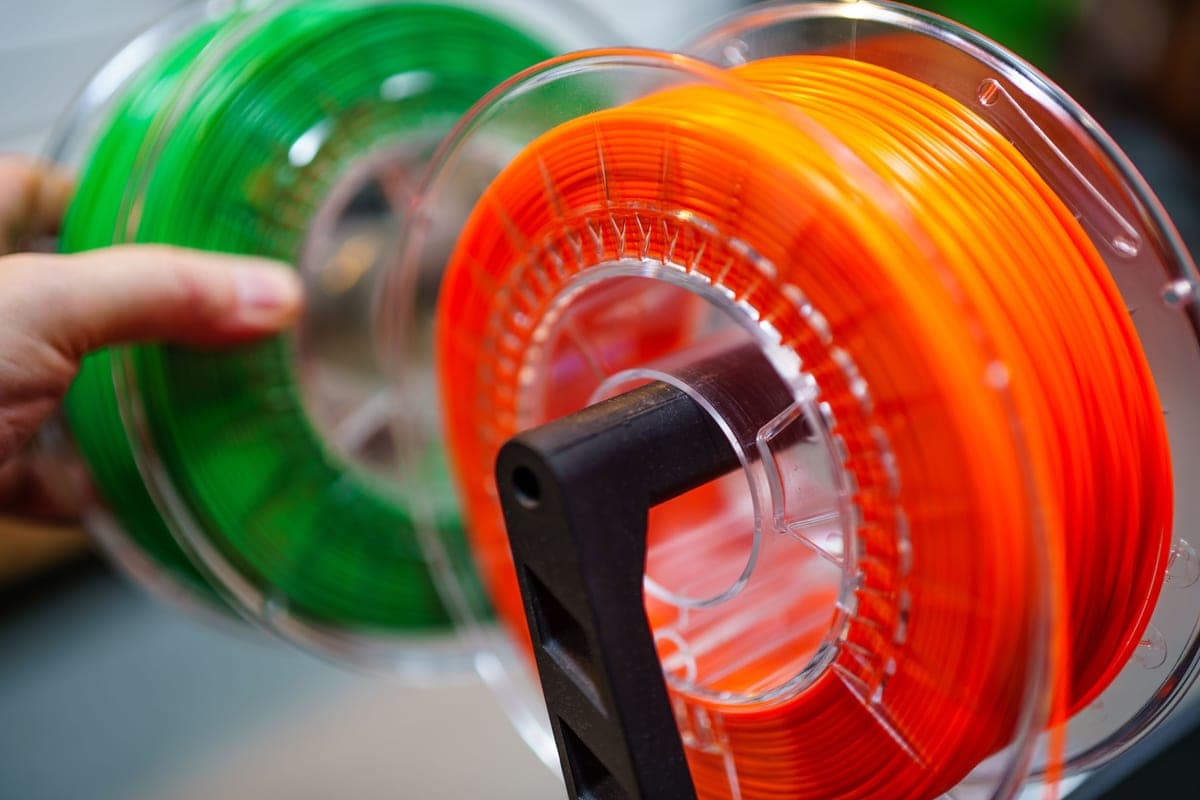
Nearly every affordable multi-color printer has one nozzle. The extra colors come from a unit holding several spools that feeds them into that one nozzle in turn, cutting and swapping the filament every time the color changes.
Which means two things follow directly, and both are worth knowing before you spend money.
It takes longer. Every swap is a mechanical operation: retract the old filament, cut it, load the new one, push it through until the old color is fully flushed out. A model that alternates colors every few layers spends a large share of its total print time doing that rather than printing.
It wastes filament. That flush has to go somewhere, and it goes into a purge block or a “poop chute” beside the model. The waste is proportional to the number of swaps, not the size of the object, so a small four-color model can generate a startling pile of scrap next to it.
Neither of those is a defect. They are how the technology works at this price. The machines that avoid them have multiple independent nozzles and cost considerably more.
Why we still say buy it second
Because multicolor is a second problem stacked on a first one. In week one you are learning what a good first layer looks like, why a print lifted at a corner, and how to read a slicer. Adding four spools, a filament cutter, purge settings and a per-color profile to that week is how people end up with a machine that is more trouble than it is fun.
Add it in month three and every one of those problems is separable: you already know what a good print looks like, so when a multi-color print goes wrong, you know it is the color system.
Every beginner guide worth reading lands in the same place — get comfortable in one color first — and the reason it keeps being said is that the multi-spool unit really can be bought later on most machines. It is one of the very few upgrades in this hobby that is genuinely deferrable.
What multicolor is genuinely good at
- Text and logos. A recessed name in a second color is trivially easy and looks like a manufactured product.
- Board game pieces and terrain. Small, detailed, multi-color by nature, and small objects mean less purge waste in proportion.
- Anything you would otherwise paint. Painting a printed model well is a skill; printing it in the right colors is a setting.
- Support material. The underrated use. A second spool of a support-specific filament makes overhangs release cleanly in a way single-material supports do not.
What to read next
If you are going multi-color, the filament choice matters more than usual — colors from the same brand and line behave consistently, which removes a variable when four of them are going through one nozzle. Our PLA picks cover that, and how to print multiple colors walks through the slicer side, including the two settings that determine how much filament you waste.
If you want the color unit and an enclosure bought as one box, our Anycubic Kobra S1 Combo review covers Anycubic’s current enclosed multi-color machine, including the three footnotes on its own product page worth reading before you order.
Quick picks
Ranked on how well each one fits the job in this page's title, read off the manufacturer's own published specifications. Tap any row for the full write-up, including who should skip it.
| # | Product | Best for | Beginner fit | Price |
|---|---|---|---|---|
| 1 | 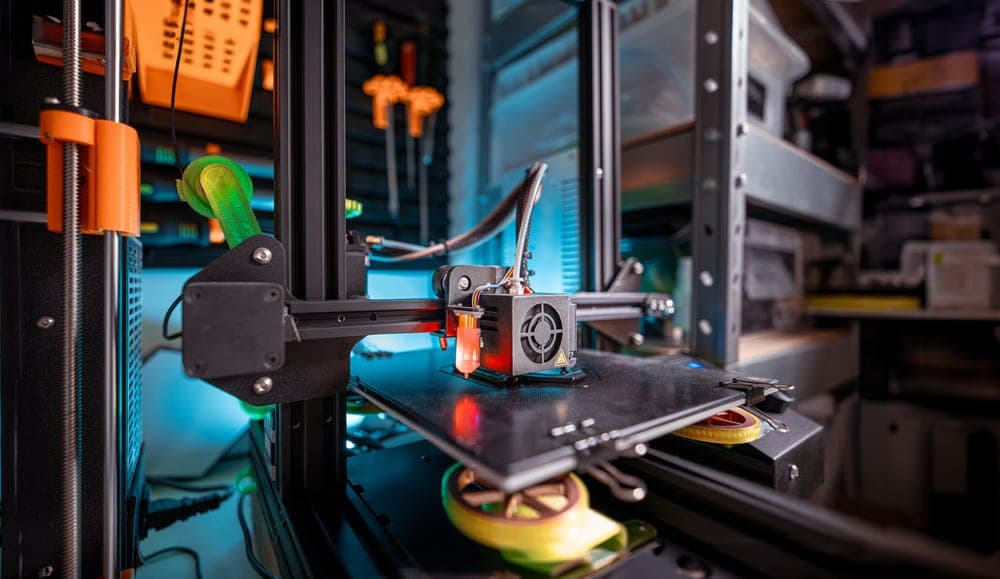 Anycubic Kobra 3 Combo250 x 250 x 260 mm Anycubic Kobra 3 Combo250 x 250 x 260 mm | Best multicolor bundle | 7.8 | Check price on Amazon |
| 2 | 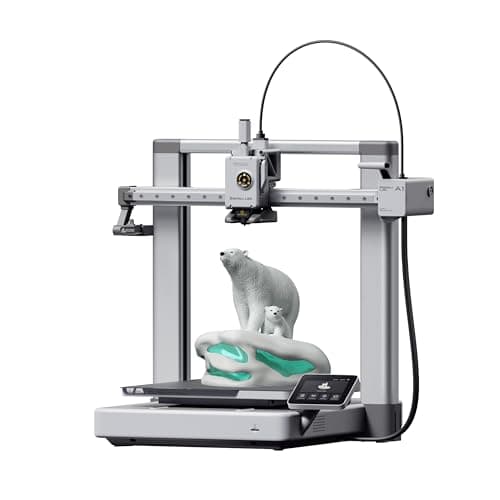 Bambu Lab A1256 x 256 x 256 mm Bambu Lab A1256 x 256 x 256 mm | Best if you buy the printer first | 9.0 | $299.99 - Check price on Amazon |
| 3 | 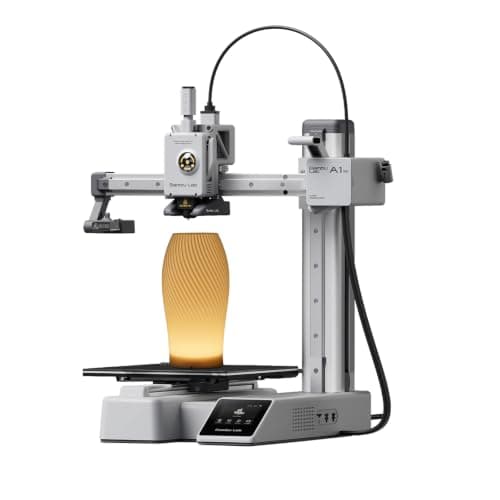 Bambu Lab A1 mini180 x 180 x 180 mm Bambu Lab A1 mini180 x 180 x 180 mm | Smallest multicolor setup | 9.2 | $249.00 - Check price on Amazon |
#1 · Best multicolor bundle
Anycubic Kobra 3 Combo
Anycubic · Multi-color without a separate purchase
Multi-color in the box rather than as an upgrade. That is the whole argument for it: if the thing that made you want a printer is a model with four colors in it, this is the shortest route to printing one.
#ad We do not hold a current price for this product, so we do not show one. How we make money.
What it actually is
An open-frame printer sold together with the ACE Pro, a unit that holds four spools and feeds them into one nozzle in turn. Multi-color on a single-nozzle printer works by swapping filament mid-print, which is why it takes longer and wastes some plastic.
Does it fit this page?
The four-spool ACE Pro is included rather than sold separately, expandable to eight colors, on a 250 x 250 x 260 mm machine. If multi-color is the reason you are buying, this is the shortest route to it.
What the manufacturer states
| Figure | Value | Source |
|---|---|---|
| Build volume | 250 x 250 x 260 mm | Anycubic Kobra 3 Combo product specifications |
| Colors | 4 with the included ACE Pro; expandable to 8 | Anycubic Kobra 3 Combo product specifications |
| Maximum print speed | 600 mm/s | Anycubic Kobra 3 Combo product specifications |
| Screen | 4.3 inch color LCD | Anycubic Kobra 3 Combo product specifications |
Read from Anycubic, Kobra 3 Combo product page on 2026-09-01. Where a manufacturer does not publish a figure, there is no row for it here.
What is good about it
- The multi-color unit is included rather than sold separately
- 250 x 250 x 260 mm is a large working envelope for the money
- 600 mm/s is the highest rated speed of any machine on this site
- Four colors changes what a beginner can make on day one more than any other feature
What is not
- Single-nozzle color changes waste filament in a purge tower and add hours to a print
- Open frame, so it inherits the usual material limits
- A four-color machine is four times as many things to go wrong on your first week
- Rated 600 mm/s is a ceiling that real geometry will not reach
Skip this one if
Skip it if you have not yet printed anything. Multi-color is a second problem stacked on a first one. Almost every guide worth reading says the same thing — get comfortable in one color, then add colors — and the ACE-style units can usually be bought later.
What we cannot tell you
We have not printed on this machine. Purge waste per color change, real multi-color reliability over a long print, and ACE Pro jam frequency are all things only an owner can report.
How it scored for a beginner
- Setup out of the box7.5
- Auto-calibration8.0
- First-layer forgiveness7.5
- Parts and filament availability8.0
- Running cost7.0
- Help when it goes wrong7.5
Beginner fit 7.8 / 10. That is our editorial read of how well this suits someone buying their first printer, taken off the published specifications — not a test result, and not a verdict on absolute quality. It is deliberately not marked up as a rating in this page’s structured data. How we pick.
#2 · Best if you buy the printer first
Bambu Lab A1
Bambu Lab · A first printer you will not outgrow
The A1 mini's larger sibling, and the better buy the moment you have a specific large thing in mind. Same self-calibration, 256 mm cubed instead of 180, and a 100 C bed rather than 80 C — which is the spec that actually widens what you can print.
#ad Price as of October 19, 2026, from Amazon. Prices change. How we make money.
What it actually is
The full-size version of the A1: same open-frame layout, same automatic calibration, a bigger bed and a hotter one. The extra bed temperature matters because materials that shrink as they cool need a warm plate to stay stuck to it.
Does it fit this page?
The AMS lite is a separate purchase, which is exactly why we like this route: buy the machine, learn it in one color, and add four colors later when the first-layer problems are behind you.
What the manufacturer states
| Figure | Value | Source |
|---|---|---|
| Build volume | 256 x 256 x 256 mm | Bambu Lab A1 technical specifications |
| Max hot end temperature | 300 C | Bambu Lab A1 technical specifications |
| Max build plate temperature | 100 C | Bambu Lab A1 technical specifications |
| Max toolhead speed | 500 mm/s | Bambu Lab A1 technical specifications |
| Max toolhead acceleration | 10,000 mm/s2 | Bambu Lab A1 technical specifications |
| Filaments rated ideal | PLA, PETG, TPU, PVA | Bambu Lab A1 technical specifications |
| Machine dimensions | 465 x 410 x 430 mm | Bambu Lab A1 technical specifications |
| Net weight | 8.3 kg | Bambu Lab A1 technical specifications |
| Max power | 350 W at 110 V | Bambu Lab A1 technical specifications |
Read from Bambu Lab, A1 technical specifications on 2026-09-01. Where a manufacturer does not publish a figure, there is no row for it here.
What is good about it
- 256 mm cubed covers almost everything a first-year printer is asked to make
- 100 C bed rather than the mini's 80 C, which is the difference that makes larger PETG parts stick
- Identical hands-off calibration to the A1 mini, so nothing gets harder as the machine gets bigger
- Bambu Lab publishes a full specification sheet, so every number on this page is checkable in a minute
What is not
- 465 mm wide and 8.3 kg — it needs a dedicated shelf, not a corner of a desk
- 350 W at US voltage against the mini's 150 W, so it costs meaningfully more to run
- Still open-frame, so the material limits are the same as the mini's despite the hotter bed
- Multi-color is again a separate AMS lite purchase
Skip this one if
Skip it if your desk is the only place it can go and you have not measured that desk. It is nearly half a meter wide. If you are unsure whether you will use the extra volume, the mini is the cheaper mistake.
What we cannot tell you
We have not printed on this machine. Noise at full speed, long-term belt and rod wear, and how often the auto-calibration actually needs intervention are all beyond what a specification sheet can tell you.
How it scored for a beginner
- Setup out of the box9.5
- Auto-calibration10.0
- First-layer forgiveness9.5
- Parts and filament availability9.0
- Running cost8.0
- Help when it goes wrong9.0
Beginner fit 9.0 / 10. That is our editorial read of how well this suits someone buying their first printer, taken off the published specifications — not a test result, and not a verdict on absolute quality. It is deliberately not marked up as a rating in this page’s structured data. How we pick.
#3 · Smallest multicolor setup
Bambu Lab A1 mini
Bambu Lab · A genuine first printer
The one to get if you have never done this before. It calibrates itself before every print — bed mesh, Z-offset, flow, resonance — so the part of 3D printing that used to defeat beginners is a step you never see. The build volume is the price you pay.
#ad Price as of October 19, 2026, from Amazon. Prices change. How we make money.
What it actually is
A small open-frame filament printer. Filament is a 1.75 mm plastic string on a spool; the machine melts it and draws your object one layer at a time. Open-frame means there is no box around it, which is fine for PLA and a limitation for materials that warp.
Does it fit this page?
The same four-color AMS lite path on a smaller machine. 180 mm cubed limits what you can make, but multi-color objects are usually small and detailed rather than large.
What the manufacturer states
| Figure | Value | Source |
|---|---|---|
| Build volume | 180 x 180 x 180 mm | Bambu Lab A1 mini technical specifications |
| Max hot end temperature | 300 C | Bambu Lab A1 mini technical specifications |
| Max build plate temperature | 80 C | Bambu Lab A1 mini technical specifications |
| Max toolhead speed | 500 mm/s | Bambu Lab A1 mini technical specifications |
| Max toolhead acceleration | 10,000 mm/s2 | Bambu Lab A1 mini technical specifications |
| Filaments rated ideal | PLA, PETG, TPU, PVA | Bambu Lab A1 mini technical specifications |
| Filaments not recommended | ABS, ASA, PC, PA, PET, carbon/glass fiber reinforced | Bambu Lab A1 mini technical specifications |
| Machine dimensions | 347 x 315 x 365 mm | Bambu Lab A1 mini technical specifications |
| Net weight | 5.5 kg | Bambu Lab A1 mini technical specifications |
| Max power | 150 W | Bambu Lab A1 mini technical specifications |
Read from Bambu Lab, A1 mini technical specifications on 2026-09-01. Where a manufacturer does not publish a figure, there is no row for it here.
What is good about it
- Full auto-calibration on every print, per Bambu Lab's own specification — no paper-under-the-nozzle ritual
- Rated ideal for PLA, PETG, TPU and PVA, which covers everything a beginner should print in year one
- 150 W maximum power draw is the lowest of any printer on this site, so running cost is trivial
- 5.5 kg and 347 mm wide — it fits on a desk without rearranging the room
What is not
- 180 mm cubed is genuinely small. A full-size helmet or a large cosplay prop will not fit
- Bambu Lab rates ABS, ASA, PC and fiber-reinforced filaments as not recommended on this machine
- The multi-color AMS lite is a separate purchase, so the headline price is not the multi-color price
- Bambu Lab's own Amazon store lists this machine bundled with an LED lamp kit rather than on its own, so the price on our button is for that bundle. The bare printer is sold direct on Bambu Lab's store
- Open frame, so it is at the mercy of a draft from a window or an air conditioning vent
Skip this one if
Skip it if you already know the thing you want to print is bigger than a shoebox, or if you specifically want ABS or a carbon-fiber-filled filament. Bambu Lab itself lists those materials as not recommended here, and buying a machine you intend to use outside its rated envelope is how a first printer becomes a frustrating one.
What we cannot tell you
We have not printed on this machine. Long-term reliability, real-world noise in a quiet room, and how the textured plate holds up after a year are all things we cannot honestly report without owning one.
How it scored for a beginner
- Setup out of the box9.5
- Auto-calibration10.0
- First-layer forgiveness9.5
- Parts and filament availability9.0
- Running cost10.0
- Help when it goes wrong9.0
Beginner fit 9.2 / 10. That is our editorial read of how well this suits someone buying their first printer, taken off the published specifications — not a test result, and not a verdict on absolute quality. It is deliberately not marked up as a rating in this page’s structured data. How we pick.
How these were picked
We have not printed on these machines and we do not pretend to have. What we did was read each manufacturer’s own specification page, take their stated build volume, temperatures and speeds, check that every pick genuinely fits the job in this page’s title, confirm it is still being sold, and pull a live price rather than a remembered one. Every figure names the source it came from, so you can check it yourself in about a minute.
How we pick sets out the full method, including what would change a ranking.
Questions people actually ask
+−Do I need a multicolor 3D printer as a beginner?
No. Get comfortable in one color first — on most machines the multi-spool unit can be added later, so buying it up front means learning two things at once for no benefit. The exception is if a specific multi-color model is the reason you want a printer at all.
+−How much filament does multicolor printing waste?
It depends entirely on how many color changes the model has, because the nozzle has to be flushed at every swap and the flushed material goes into a purge block. A model that changes color every few layers wastes far more, proportionally, than one with a few large blocks of color. Your slicer estimates the purge before you print.
+−Can I add multicolor to a printer later?
On most current beginner machines, yes — the multi-spool unit is sold separately and designed to be added. Check the specific model before you rely on it, and check whether the version you are buying is the bare printer or the bundle, because the listings look very similar and the prices do not.